
SafeSprint docs
How SafeSprint works, from your first board to running sprints with the whole team.
Introduction#
SafeSprint is a free Kanban board for teams. You get organizations, shared and private boards, cards with all the usual details, and live updates while several people work on the same board.
The name says what it is for. Safe: it is safe by default. Two-factor sign-in, sessions you can revoke per device, private boards and an audit log are built in, and nothing needs switching on before your team's work is protected. Mistakes are safe too: moves can be undone and archived work can be restored. Sprint: it is shaped around project sprints, with a backlog, work-in-progress limits, estimates and due dates.
Getting started#
- Create an account with your name, email and a password, or with one of the other sign-in options on the sign-in page.
- Click the link in the verification email. Nothing opens until you do, and the link and the account last 24 hours: an account that isn't verified by then is removed, and you can sign up again with the same address.
- You land in your own workspace, with a welcome message waiting in the inbox (the bell in the top bar). The workspace is an organization: rename it from its Settings tab to fit your team or company.
- Create your first board, from scratch or from a template.
- Invite your team from the Members page.
Organizations#
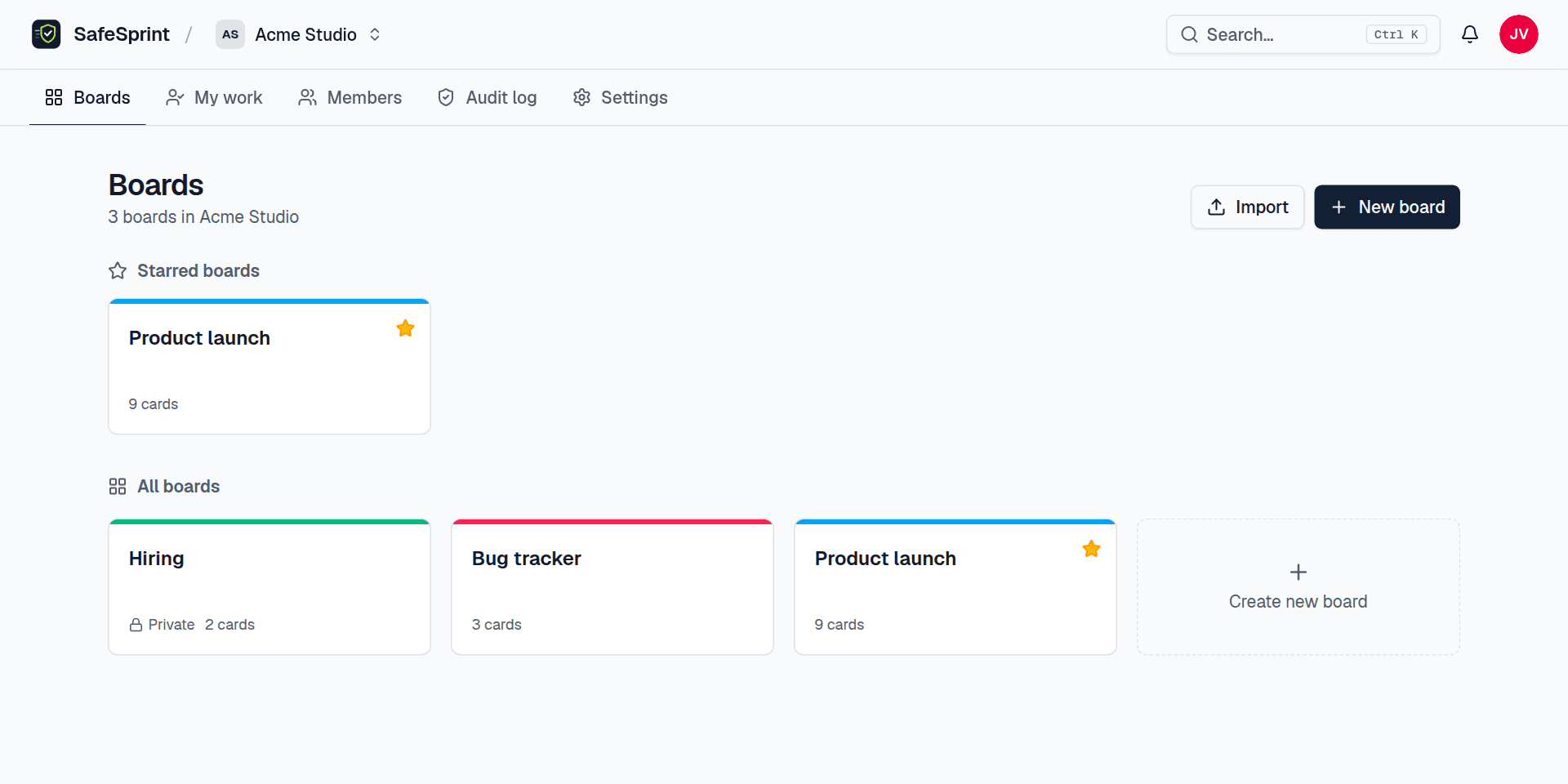
Everything in SafeSprint lives in an organization: its boards, its members and its audit log. You can belong to several and switch between them with the menu next to the SafeSprint logo. The organization's home page lists its boards, with starred boards at the top.
Members and roles#
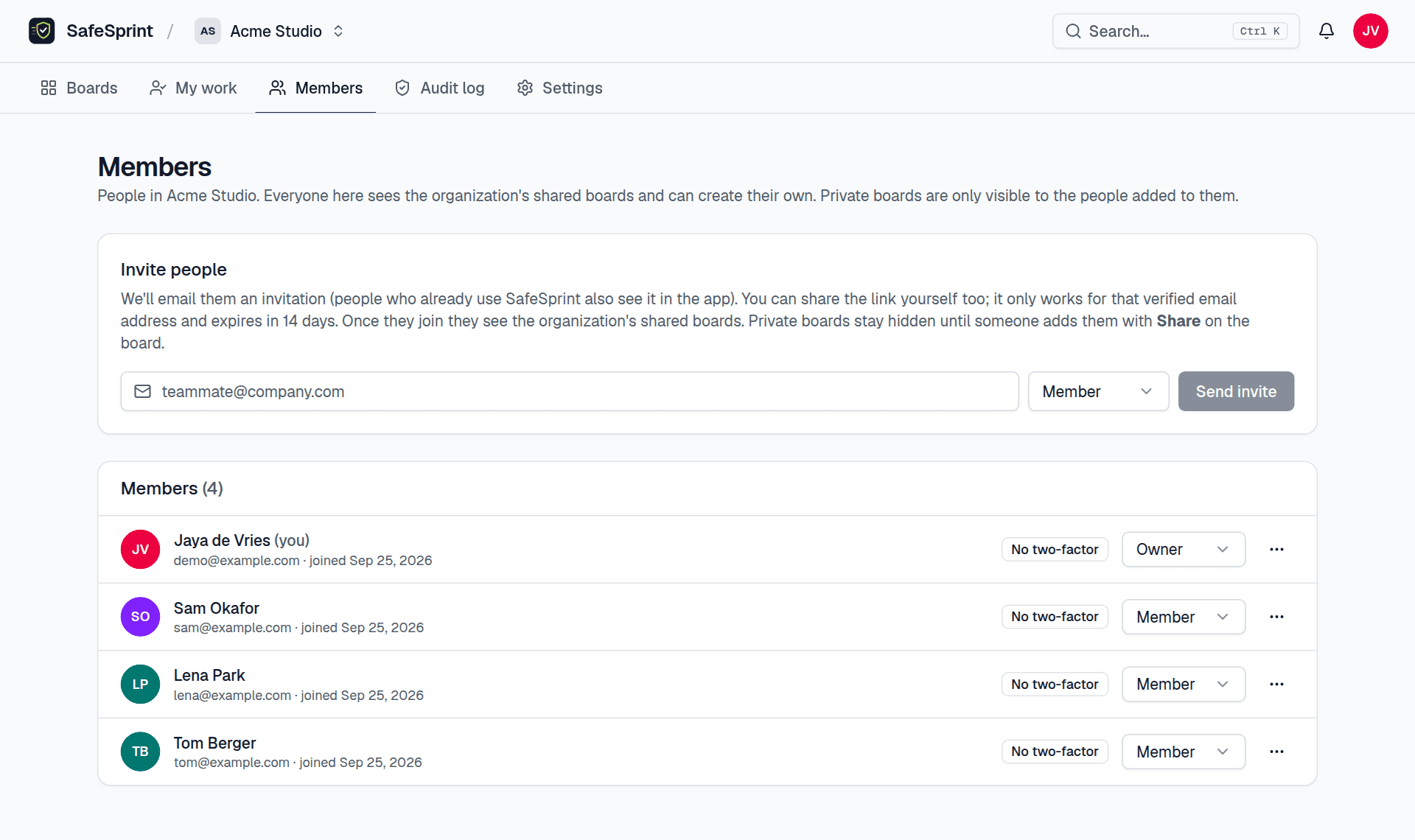
Owners and admins invite people from the Members page. Enter an email address and a role, and SafeSprint sends an invitation. People who already have an account also see it in the app. An invitation only works for the address it was sent to, only once that address is verified, and it expires after 14 days.
| Owner | Everything an admin can do, plus deleting the organization and making other people owners. |
|---|---|
| Admin | Invites and removes members, changes roles, edits the organization settings, manages the organization's shared boards and reads the audit log. |
| Member | Sees the organization's shared boards, joins them to edit, and creates boards of their own. |
Audit log#
Owners and admins can open the Audit log tab to see who was invited, who joined, whose role changed, which boards were created, changed or deleted, who was added to or removed from a board, and every change to the organization's settings. Each entry shows who did it and when.
Required two-factor sign-in#
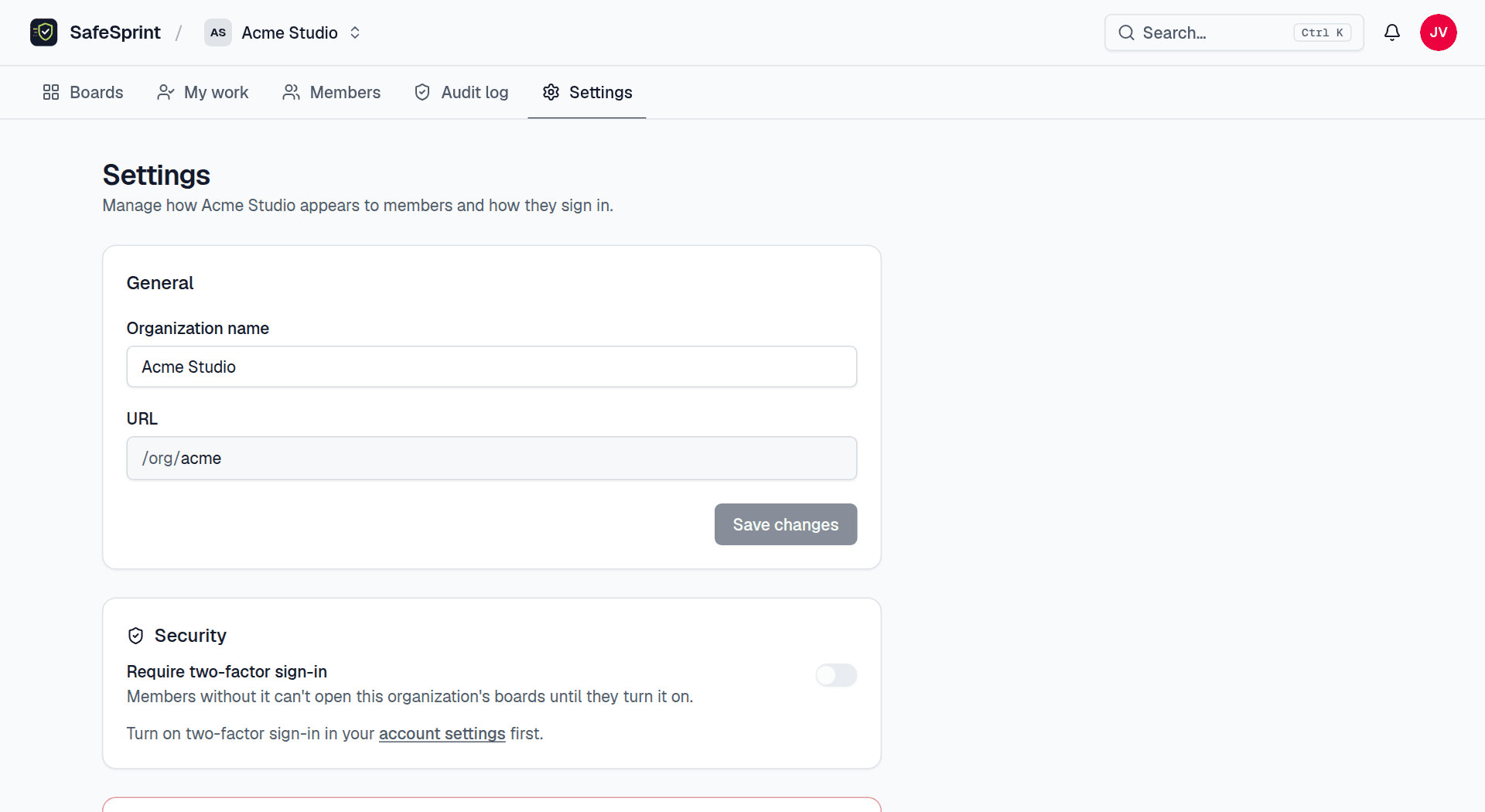
Owners can make two-factor sign-in mandatory for everyone in the organization. Turn on Require two-factor sign-in under Security in the organization's Settings. You need two-factor sign-in on your own account first, so you can't lock yourself out.
- Members without two-factor sign-in are sent to their account settings with an explanation when they open the organization or one of its boards. Once they set it up, everything opens again. Nothing is removed in the meantime.
- The Members page marks who still needs to set it up, so owners and admins can follow up.
- While any of your organizations requires it, you can't turn two-factor sign-in off on your account. Leaving the organization always works.
Boards#
Create a board with New board on the organization page. Give it a name, a color and a visibility. Star the boards you use most with the star next to the board name. The board menu (⋯) holds its activity, archived items, export and copy. Board admins also find Settings there, to rename the board, change its color or visibility, manage its members or delete it.
Templates#
New boards can start from a template with lists, labels and example cards already in place:
- Sprint: backlog, sprint, in progress, review and done, with work-in-progress limits and stuck warnings.
- Retrospective: went well, to improve and action items, with anonymous cards.
- Product roadmap: now, next and later.
- Bug tracker, Content calendar and Hiring.
Who can see a board#
- Organization boards are visible to every member of the organization. Members can look, and join the board to edit it.
- Private boards are only visible to the people on the board, even for organization owners and admins. For everyone else they don't exist, not even in search.
People on a board are admins (settings and members), editors (cards and lists) or viewers (read only). Add people with Share in the board header.
Retrospectives and anonymous cards#
For an honest sprint retrospective, start a board from the Retrospective template. It has anonymous cards turned on: nobody can see who added a card, not in the activity log, the card history or the live updates. The board header shows an Anonymous badge and the new-card box says so too.
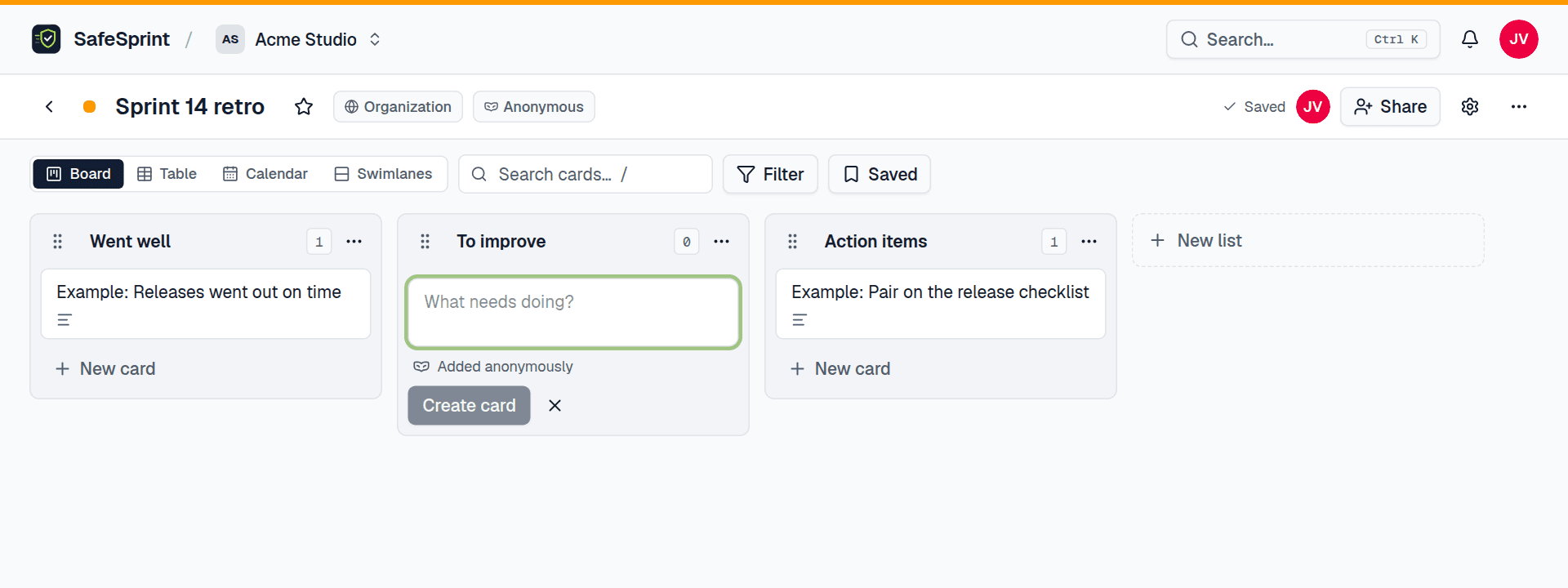
Board admins can switch anonymous cards on or off for any board in the board's Settings. It applies to cards added while it is on; changes to cards afterwards are logged as usual.
Lists and cards#
A board is a row of lists, and each list holds cards. Add a list with New list at the end of the row, and a card with New card at the bottom of a list (or press n).
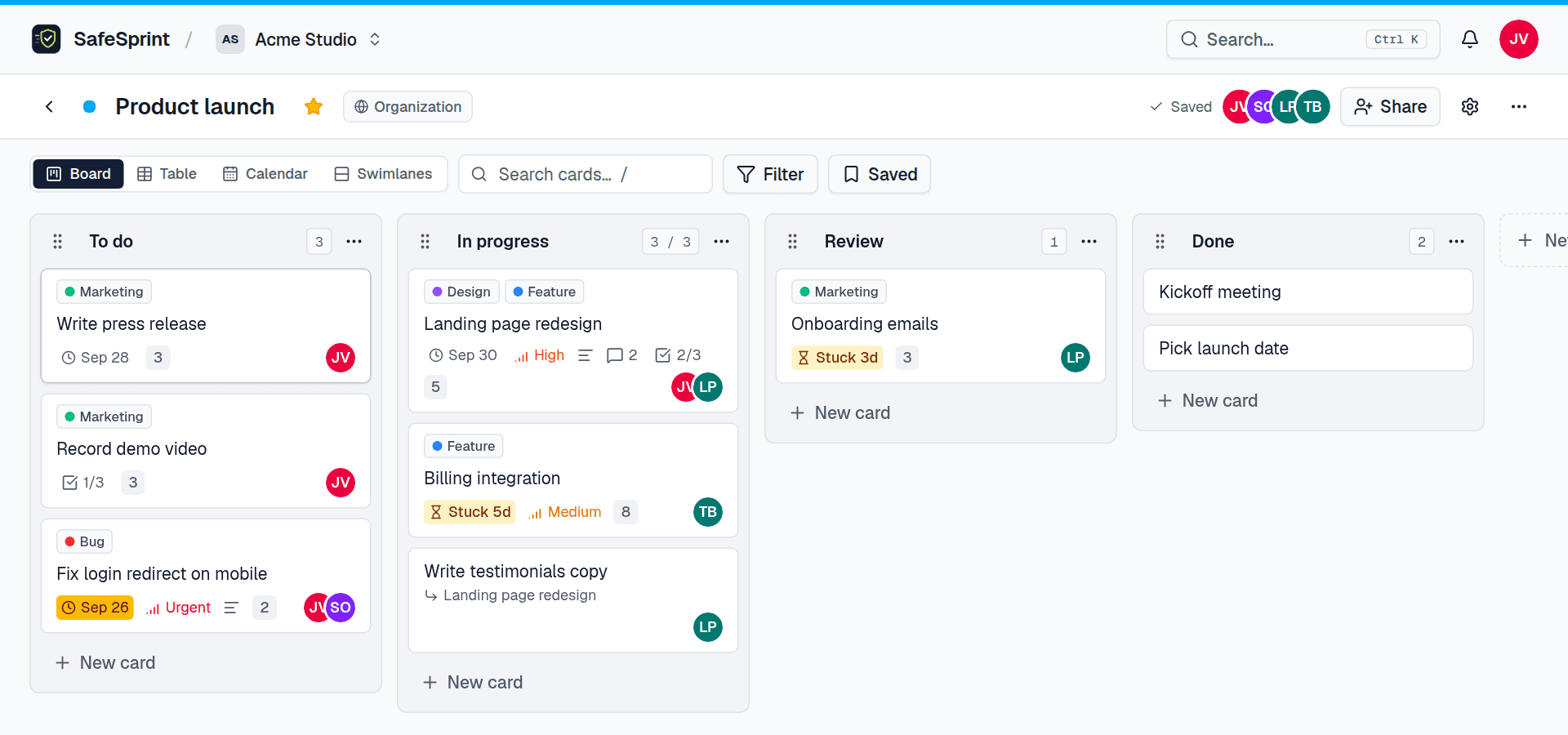
- Drag and drop cards between lists and reorder lists with the mouse, a finger or the keyboard (focus a card, press
Space, move it with the arrow keys and pressSpaceagain). Changes save immediately.Ctrl/⌘ Zundoes the last move. - Work-in-progress limits are set from a list's menu. The counter shows
2 / 3and turns red when the list holds more cards than it should. - Archive cards and lists you're done with. They disappear from the board but can be restored from Archived items in the board menu.
- Copy a card or a whole list, or move a card to another board you can edit.
Stuck cards#
Work that sits still is easy to miss. Choose Warn about stuck cards in a list's menu and enter a number of days. Cards that stay in that list longer get an amber Stuck 5d badge, so the team can talk about them at standup. The count starts again whenever a card moves to another list.
The open card shows how long it has been in its current list. Leave the field empty to turn the warning off. Done lists usually don't need one.
Card details#
Click a card to open it. Everything about the work lives here:
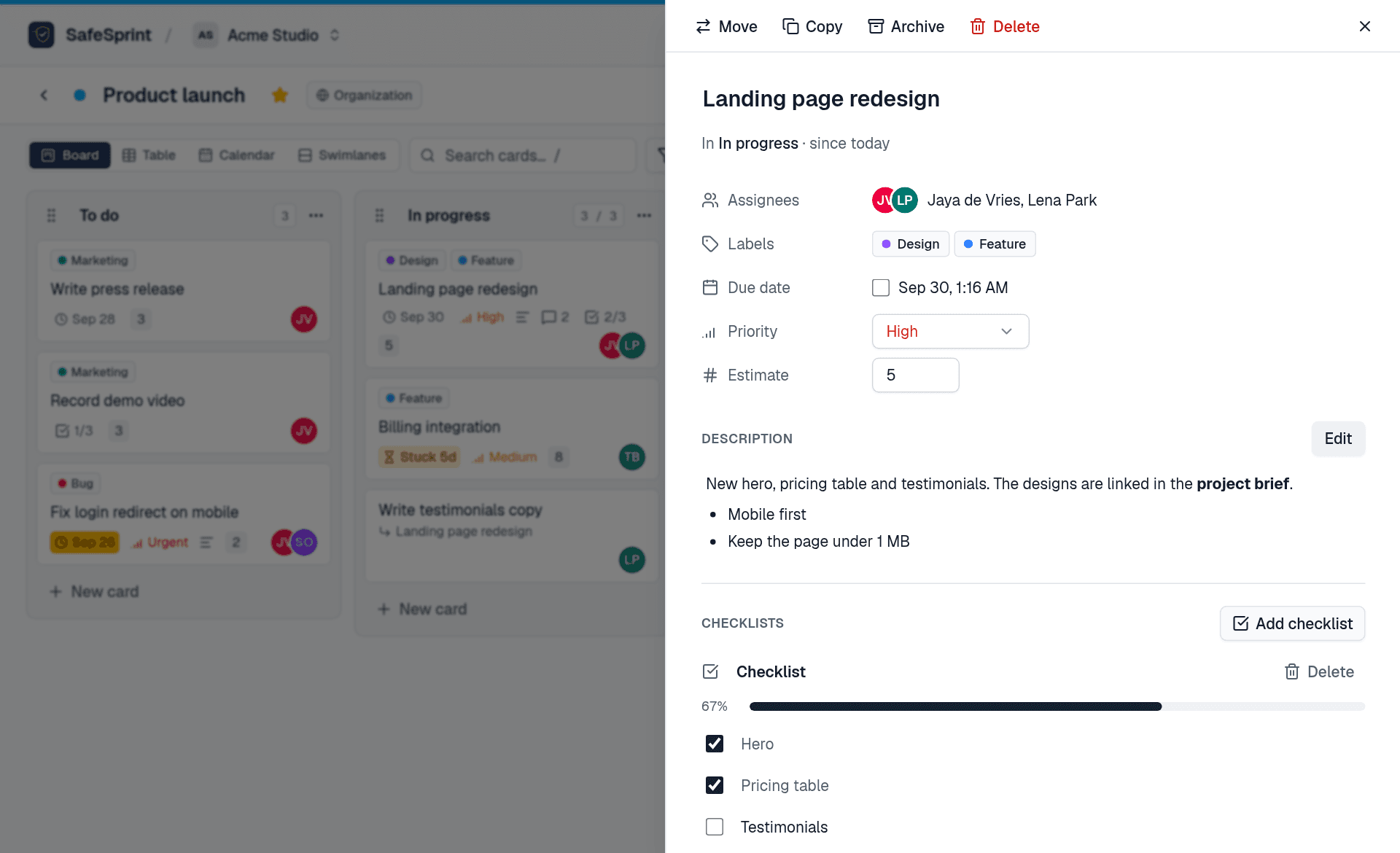
- Assignees: the people doing the work. They get a notification.
- Labels: colored tags such as Bug or Feature, shared by all cards on the board.
- Due date: cards show a badge when they are due soon and turn red when overdue. Tick the box to mark it done.
- Priority (low to urgent) and an estimate in points or hours.
- Description in Markdown: headings, lists, links, tables and code.
- Checklists with a progress bar. The card on the board shows how many items are done.
- Time in list: under the title, next to the list name, how long the card has been there.
- Comments. Type
@to mention someone; they get notified. - Attachments up to 10 MB each. An image can be used as the card cover.
- History: every change to the card, and who made it.
Sub-cards#
A checklist item that turns out to be real work can become a card of its own. Hover the item (on a phone, the buttons are always shown) and click the Turn into a card button. The new card lands right below the original in the same list, and the item leaves the checklist.
- The original card lists its Sub-cards; click one to open it.
- A sub-card shows Part of with a link back, and the card on the board shows a small ↳ line with the parent's name.
- The link lasts as long as both cards are on the same board. Moving either one to another board removes it.
Views and filters#
Every board can be viewed four ways. Switch with the tabs above the board or with the keys 1 to 4.
- Board: the lists and cards.
- Table: one row per card. Click a column header to sort.
- Calendar: cards on their due date, one month at a time.
- Swimlanes: one row per assignee, so you can see who is working on what.
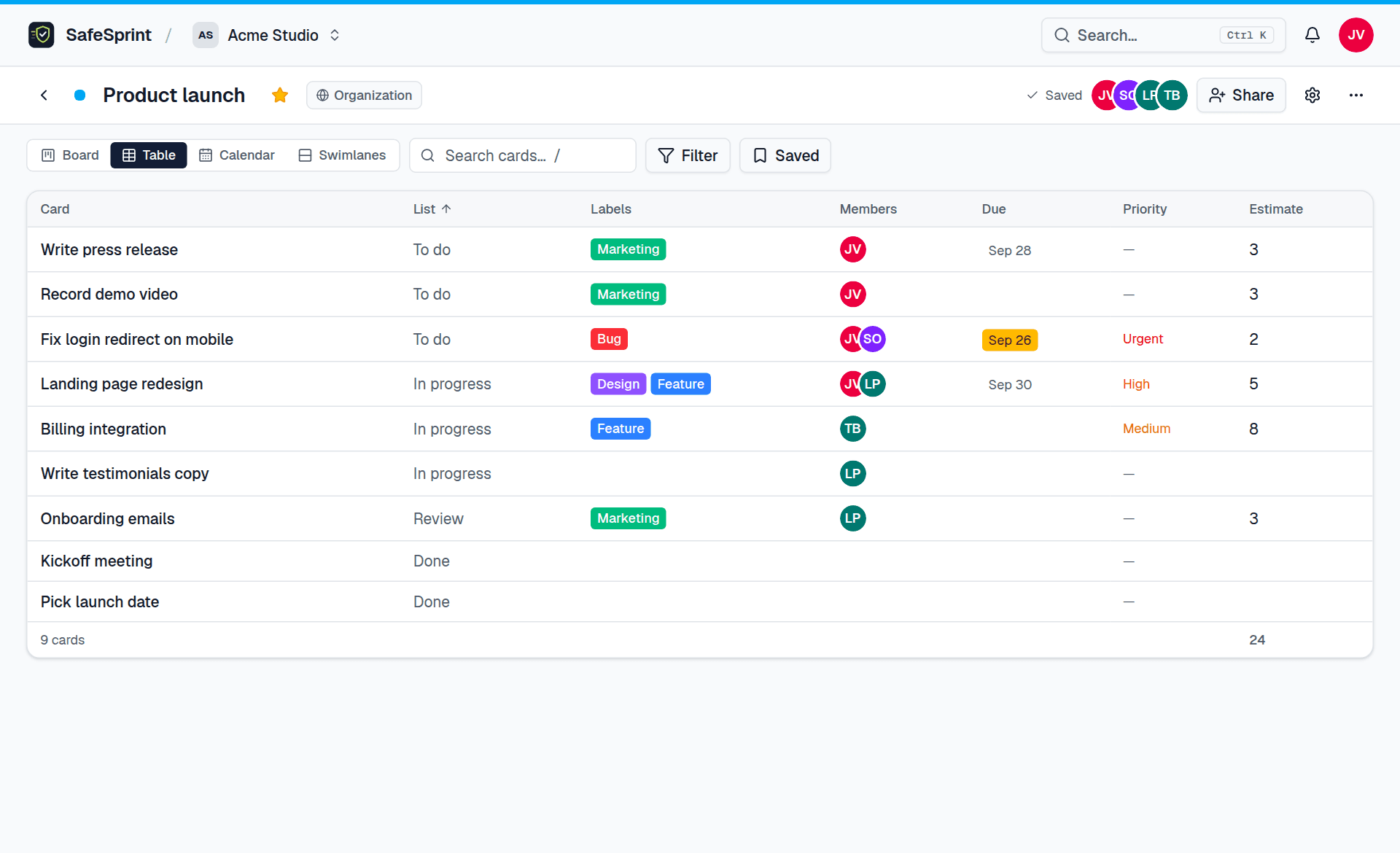
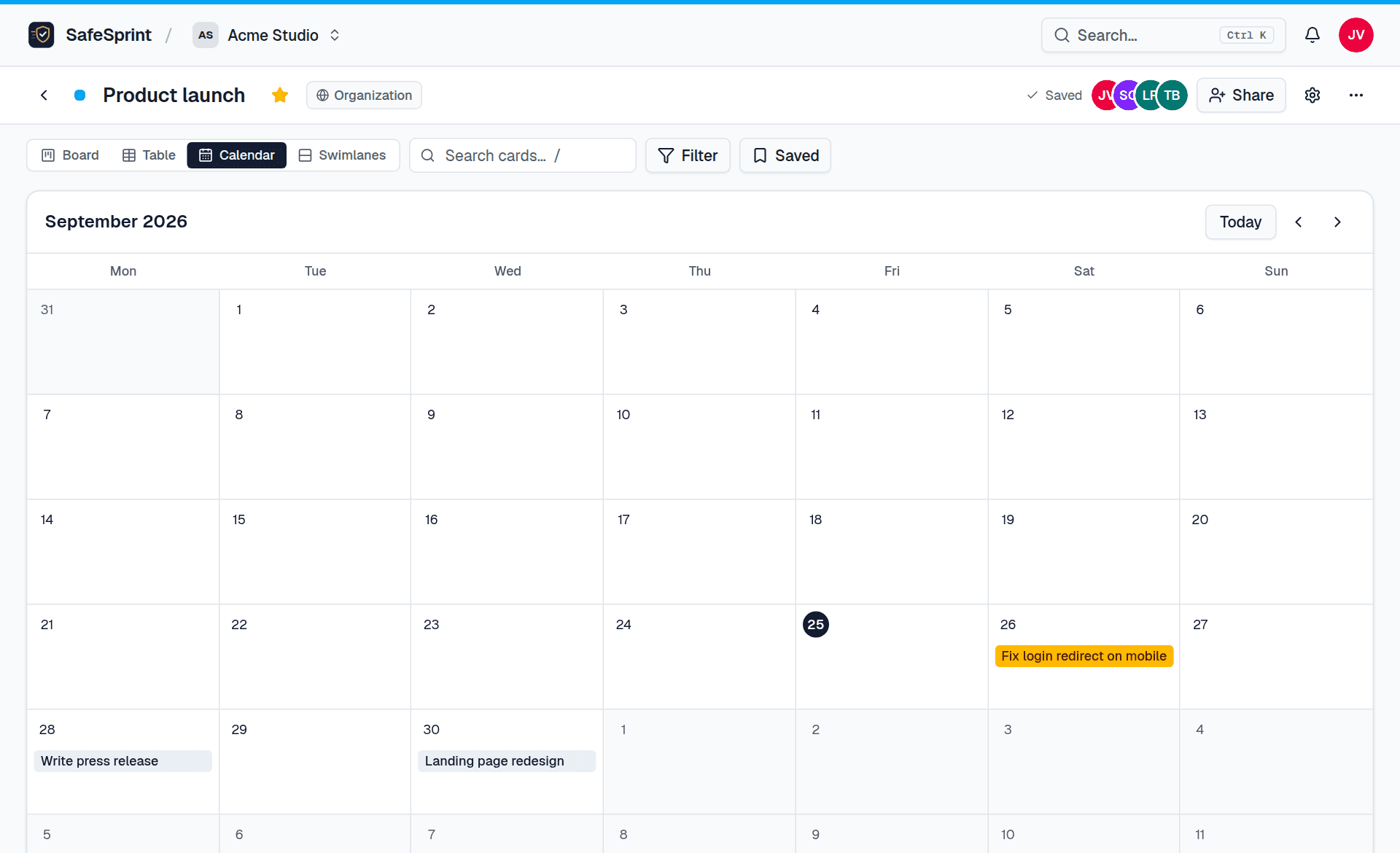
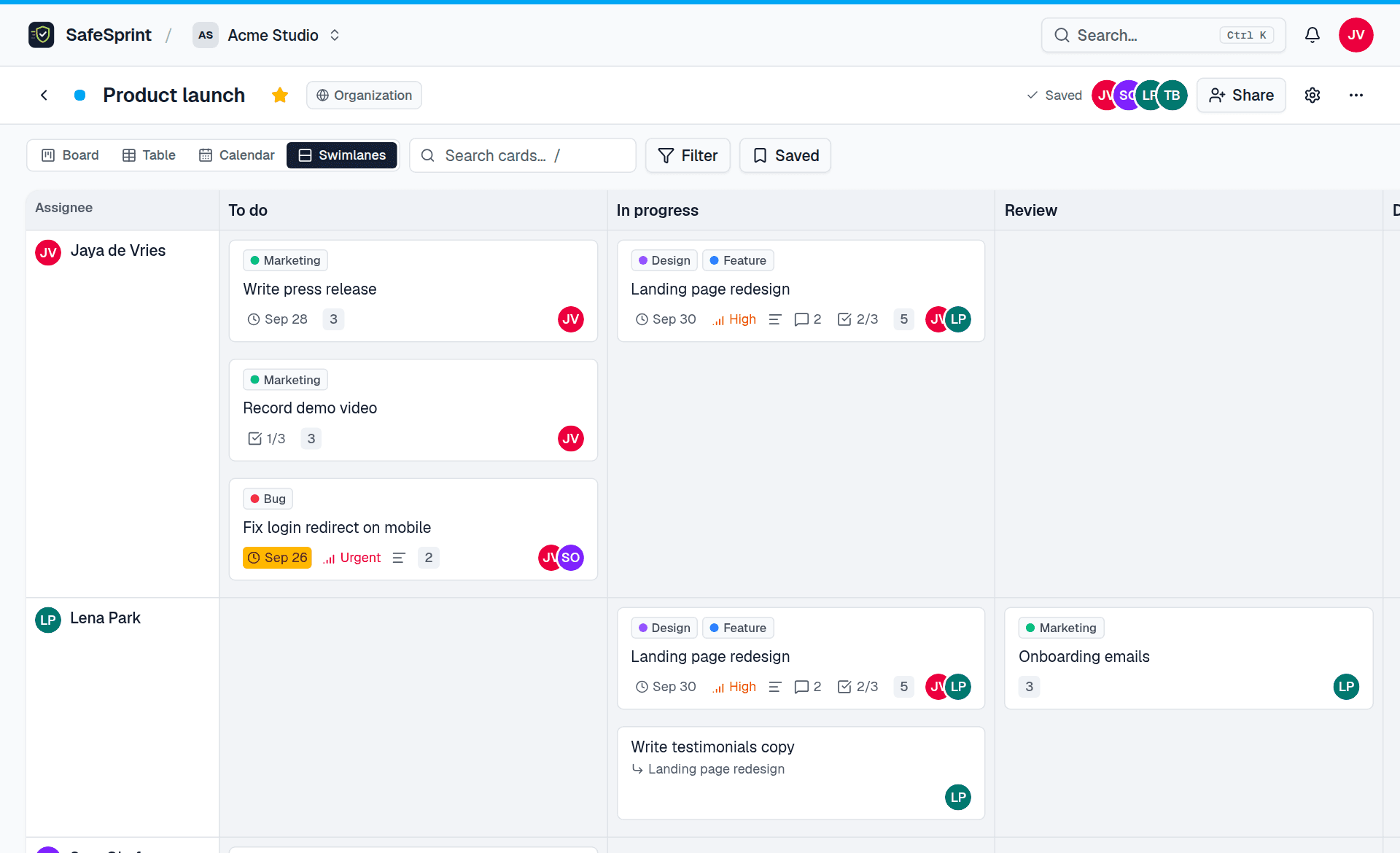
Search (/) and Filter work in every view. Filter by label, member, due date or priority. Drag and drop pauses while a filter is active.
Saved filters#
Use the same filter every day? Set it up, open Saved filters next to the search box, give it a name and press Save. From then on one click brings back the whole combination: search text, labels, members, due date and priority.
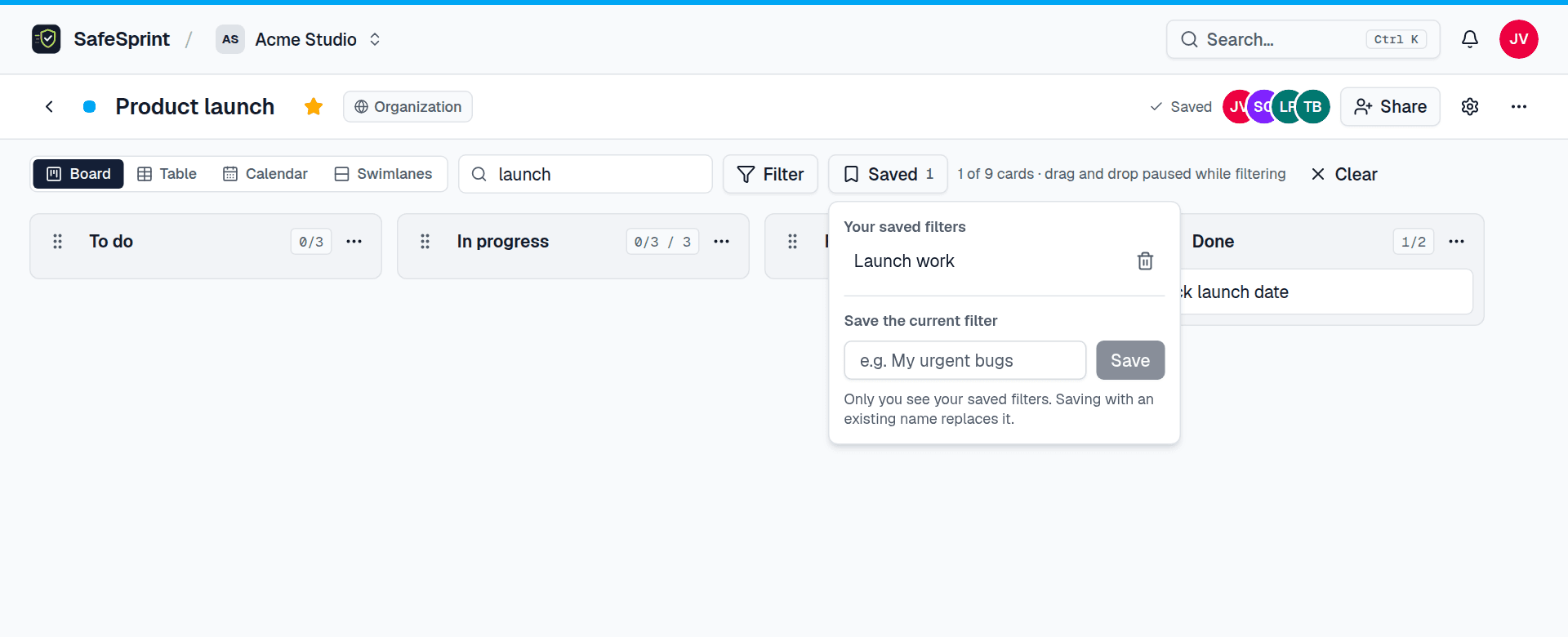
Saved filters are personal, so they don't get in your teammates' way. You can keep up to 20 per board. Saving under an existing name replaces that filter, and the trash icon next to a filter deletes it.
My work#
My work, in the organization's tabs and in the command palette, lists every card assigned to you on every board you can see in that organization. It is sorted by due date and grouped into Overdue, Today, This week, Later and No due date, with completed cards at the bottom.
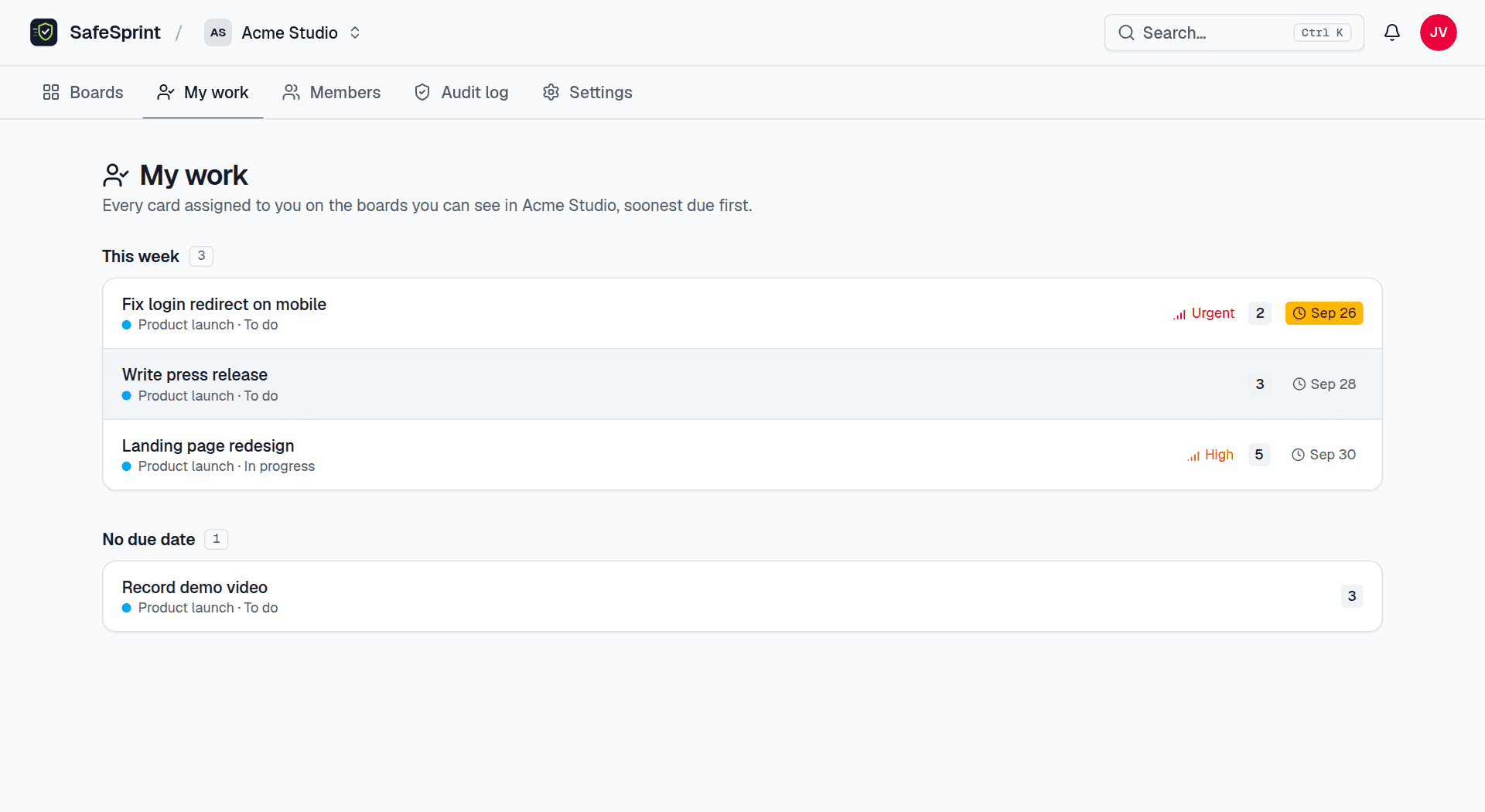
Each card shows its board and list. Click one to open it on its board. Archived cards and boards you can't see aren't listed.
On your phone#
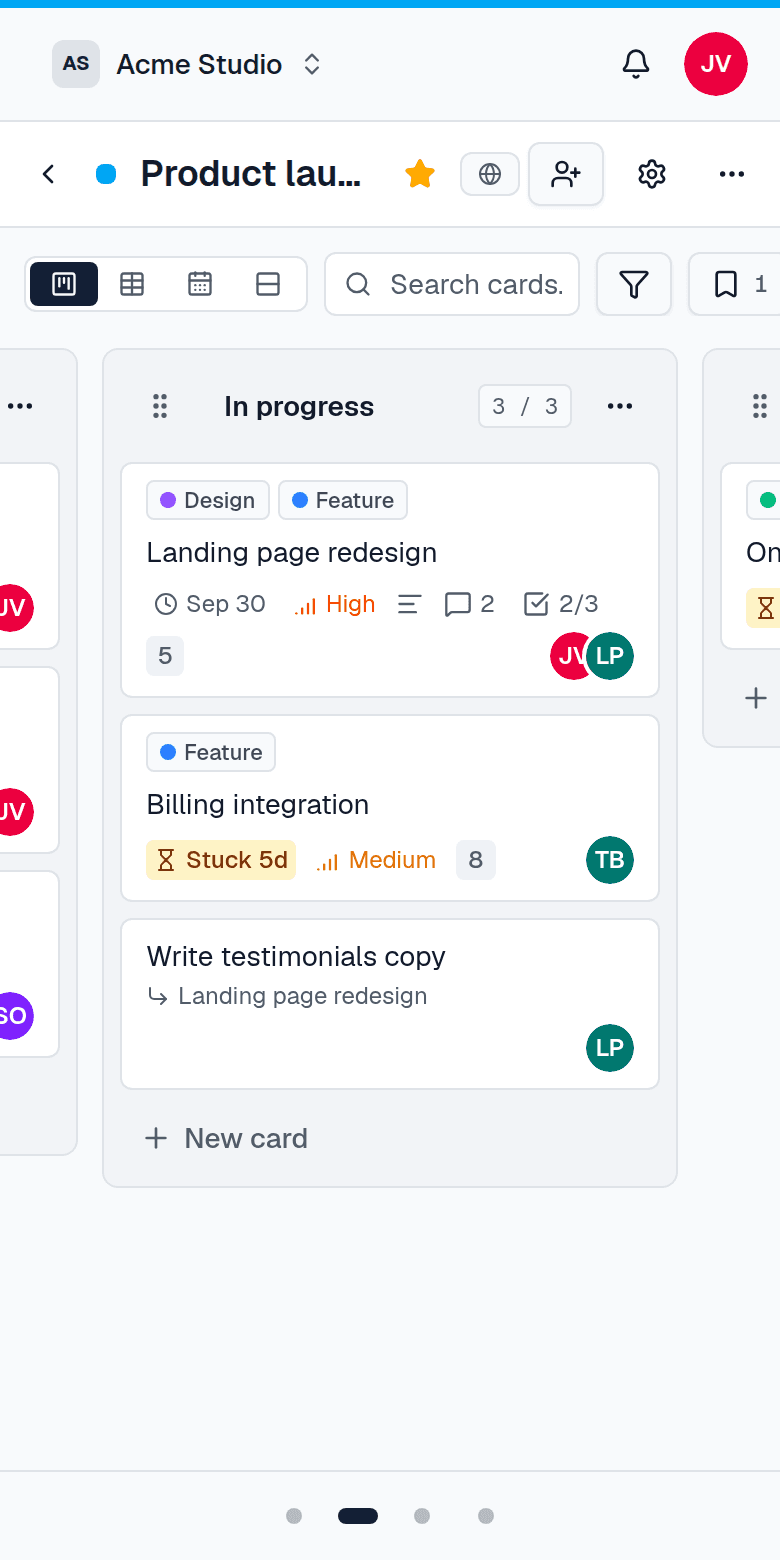
SafeSprint works in the browser on your phone; there is nothing to install. On a small screen the board shows one list at a time:
- Swipe left and right to go from list to list. Each list snaps into place.
- The dots below the board show where you are. Tap one to jump to that list.
- Buttons are bigger for fingers, and checklist actions are always visible instead of appearing on hover.
- To move a card, press and hold it for a moment, then drag. The other views, search and filters work as on a computer.
Working together#
- Live updates. When a teammate moves or edits a card, you see it right away without refreshing. The avatars in the board header show who else has the board open.
- Notifications. The bell tells you when you're assigned, mentioned or invited, when someone comments on a card you're assigned to, and when one of your cards is due soon. Unless you turn it off, you get these by email too, along with a daily digest.
- Activity. Activity in the board menu lists every change on the board: who moved, added, archived or edited what, and when.
Search and shortcuts#
Press Ctrl/⌘ K or click Search in the top bar to open the command palette. It finds boards and cards across the whole organization (only the ones you can see), and runs commands such as creating a board or opening your settings.
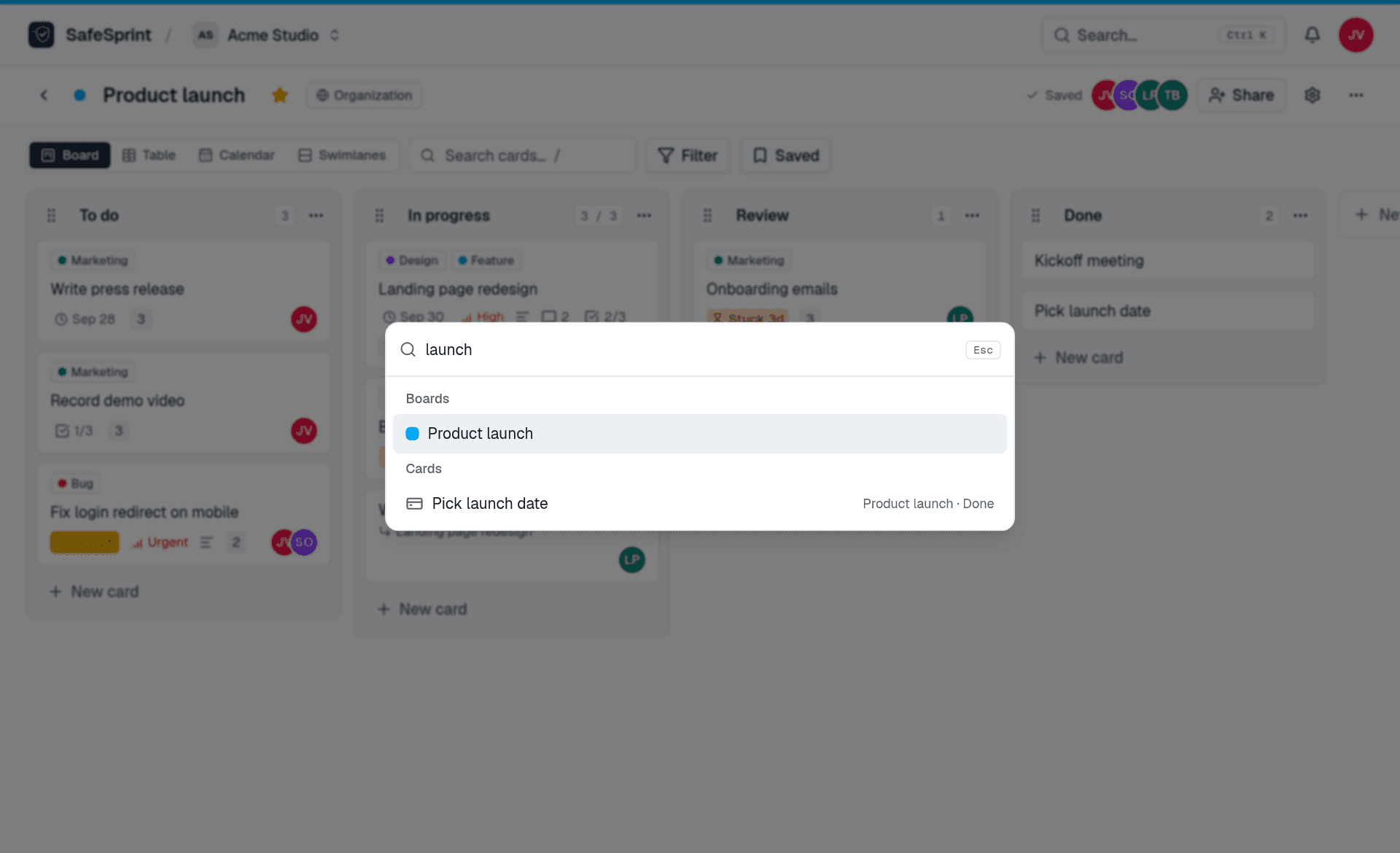
Press ? anywhere to see the shortcuts:
| Ctrl/⌘ K | Command palette: search boards and cards, jump anywhere |
| ? | Show all shortcuts |
| / | Search cards on the current board |
| n | New card in the first list |
| 1 – 4 | Switch between board, table, calendar and swimlanes |
| Ctrl/⌘ Z | Undo the last card move |
| Space | Pick up or drop the focused card or list |
| Arrow keys | Move a picked-up card or list |
| Enter | Open the focused card |
| Esc | Close a dialog or cancel editing |
Import and export#
Import on the organization's boards page takes a board exported as JSON and recreates its lists, cards, labels, checklists and due dates. It reads SafeSprint's own JSON export (including work-in-progress limits, priority and estimates) and the lists-and-cards JSON that many other Kanban tools export. Members, comments and attachments aren't imported.
Export in the board menu downloads any board as JSON (everything) or CSV (one row per card, ready for a spreadsheet). Cells that look like formulas are escaped, so the file is safe to open. Your work is never locked in.
Your account#
Open Account settings from the avatar menu in the top right. You can change your name, email address and password, and:
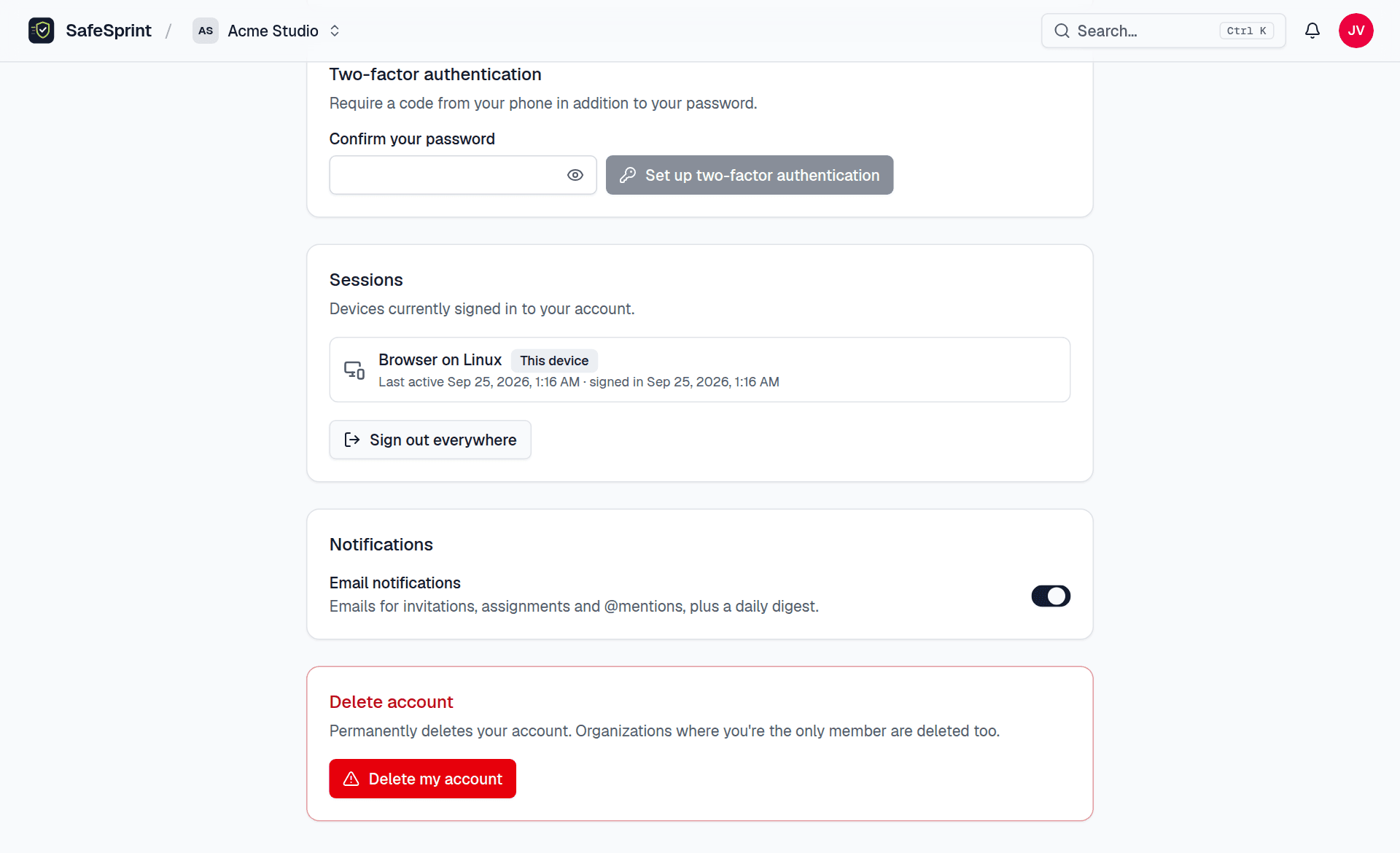
- Turn on two-factor sign-in. Scan the QR code with any authenticator app on your phone or computer, enter a code to confirm, and save the recovery codes somewhere safe.
- See every signed-in device and sign out any of them, or all of them at once.
- Switch off email: one switch covers notification emails and the daily digest.
- Delete your account. Organizations where you are the only member are deleted with it.
Forgot your password? Use Forgot password on the sign-in page and follow the link in the email.
Security#
This is what “safe by default” means in practice:
- Nothing opens until your email address is verified, so nobody can use SafeSprint with an address they don't own. Accounts that stay unverified for 24 hours are removed.
- Every action is checked on the server: you can only see and change boards you have access to. Private boards return “not found” to everyone else.
- Passwords are hashed with bcrypt and checked against lists of common and breached passwords. Only a short hash prefix is ever sent for that check.
- Two-factor secrets are encrypted, and recovery codes are stored hashed. Owners can require two-factor sign-in for their whole organization.
- Changing your password or signing out everywhere takes effect on every device immediately.
- Changing your email, password or two-factor settings, or deleting your account, asks for your password (or a recent sign-in) again.
- Sign-in, sign-up, password resets, invitations and uploads are rate limited against guessing and abuse.
- Attachments are only served to people who can see the board. Only common image types open in the browser; everything else downloads.
- A strict Content Security Policy, HTTPS only, and no embedding in other sites.
- The app itself has no analytics or ads. Board names and cards never reach a third party.
FAQ#
- Is SafeSprint free?
- Yes. There is one version and every feature on this page is in it. No trial and no paid tier.
- Can I undo a mistake?
- A card move can be undone with
Ctrl/⌘ Z, and archived cards and lists can be restored from the board menu under Archived items. Only Delete is permanent, and it asks first. - Why can’t I drag cards?
- Drag and drop pauses while a search or filter is active, so cards don't land in the wrong spot. Clear the filter to move cards again. Viewers can't move cards at all; ask a board admin for editor access.
- I didn’t get the verification email.
- Check your spam folder, then sign in and use Resend verification email on the Check your inbox page. Verify within 24 hours of signing up; after that the account is removed and you can simply sign up again.
- I lost my phone with the authenticator app.
- Sign in with one of the recovery codes you saved when you turned on two-factor sign-in. Each code works once.
- Why was I sent to my account settings?
- An organization you belong to requires two-factor sign-in. Turn it on under Two-factor authentication in your account settings and you're back in right away.
- Who can see my saved filters?
- Only you. Saved filters are personal, per board.
- How do I get in touch?
- Use the contact form for questions, feedback, bugs and security reports. A person reads every message.
- How do I leave an organization?
- Open its Members page and choose Leave organization from the menu next to your name. An organization always keeps at least one owner.